Show/hide relationships from a diagram
The show/hide relationships utility allows you to show/hide a specific or all relationships from the diagram.
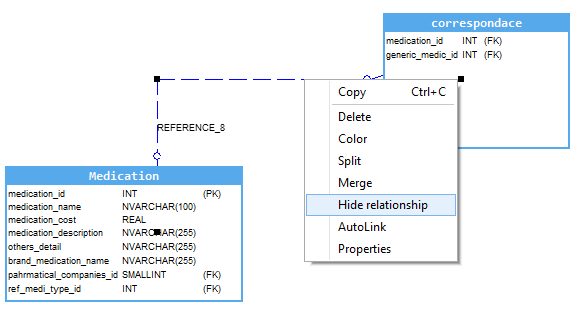
1. To hide a specific relationship, right click on its graphical representation then click on “Hide relationship”.
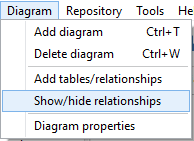
2. To hide all relationships, go to the menu “Diagram” then click “Show/hide relationships”, or just do a right click on the diagram area, then select “Show/hide relationships”.
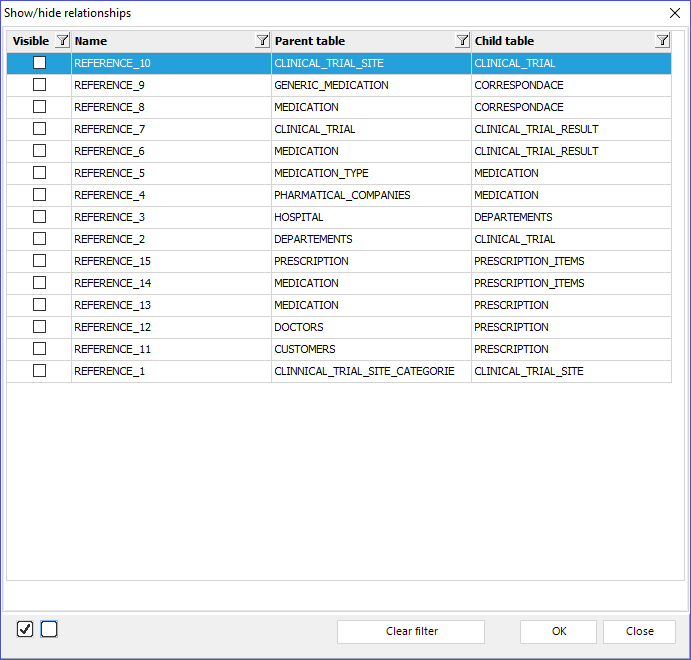
3. In the opened window, unselect all relationships to hide them then click “OK”

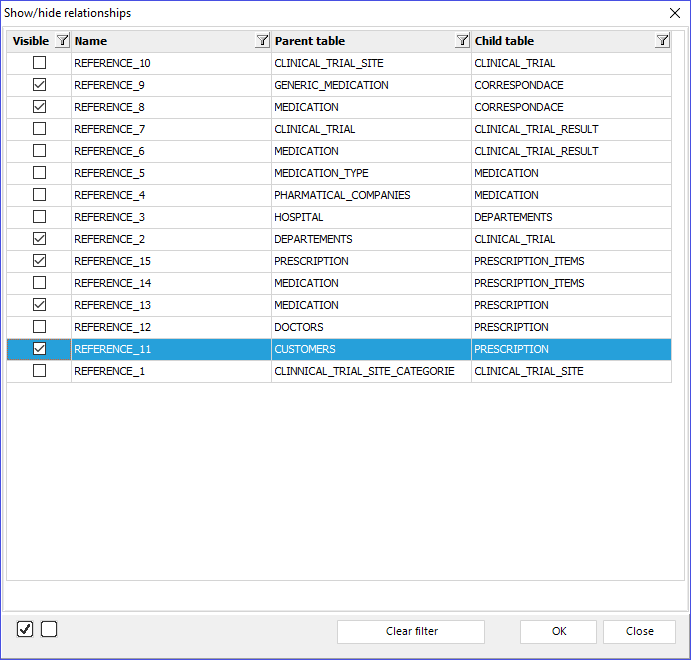
4. To display one or more relationships, go to “Diagram | Show/hide relationships” then select the relationships you want to show.
|
Available in: Starter, Standard, Professional and Enterprise Editions |